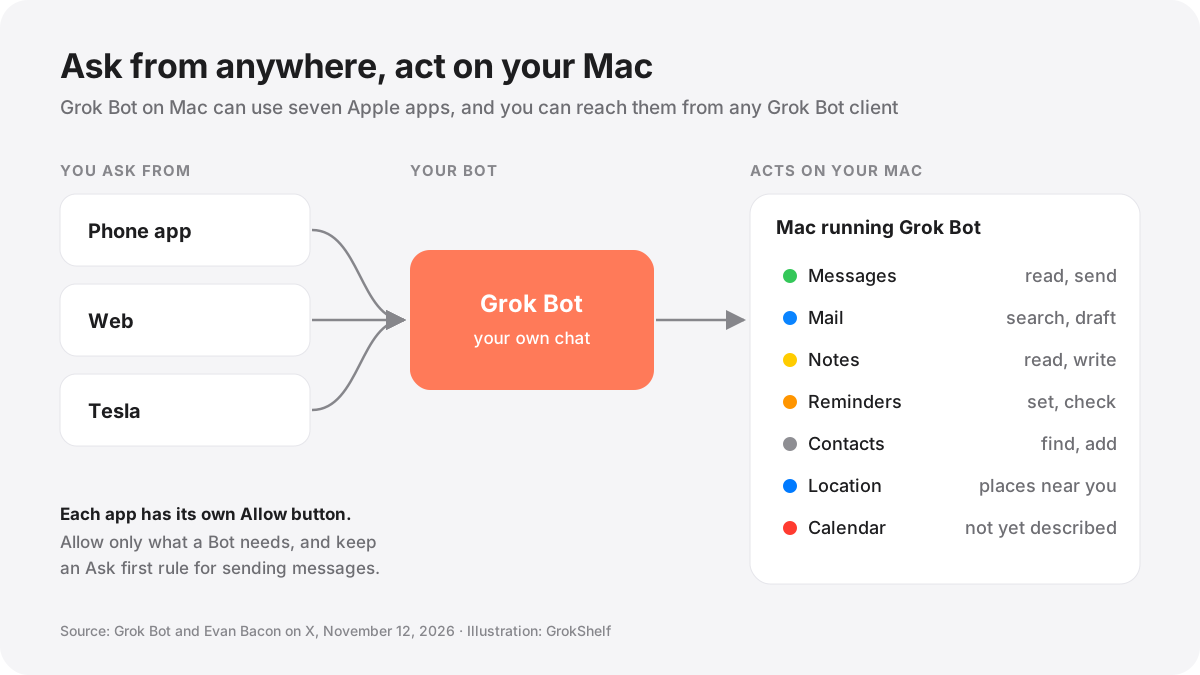
Grok Bot on Mac can now use Messages, Mail, Notes, Reminders, Calendar, Location and Contacts, and you can reach your Mac from your phone, the web or a Tesla.
In short: Grok Bot on Mac can now use seven Apple apps: Messages, Mail, Notes, Reminders, Calendar, Location and Contacts · each one has its own Allow button, so you choose app by app · Messages can read and send, Mail can search and draft but is not shown sending, Notes can read and write · you can reach these apps on your Mac from Grok Bot on your phone, the web or a Tesla · xAI has not yet published a help page for the Mac connections, so some details below come from the announcement and news reports, and we say so where that is the case.
The official Grok Bot account announced the change on X on November 12, 2026, at 18:28 UTC: "Grok Bot on Mac can now use Messages, Mail, Notes, Reminders, Calendar, Location, and Contacts." The post came with a single image of a Connect Apps screen. Less than an hour later, Evan Bacon, who leads frontend work for Grok at SpaceXSI, added the part that makes it more than a desktop feature: "You can remote control your Mac from any Grok Bot client: mobile, web, Tesla, to check your calendar, send messages, and read reminders from anywhere."
This arrives a day after Grok Bot 1.0, which was about teams. This update is the opposite: it is about one person and their own Mac. Below is what each connection does, how it fits with the controls xAI already documents, and what we would switch on first.
What each Apple app connection does
The Connect Apps screen in the announcement lists every app with a one line description. These are the company's own words from that image:
Messages: "Read and send messages." This is the only connection on the screen that says it can send something for you, and it is the one to think about most carefully.
Mail: "Search and draft emails." The screen says draft, not send. A Bot can find a thread and prepare a reply, and you send it yourself. Grok Bot already has its own email address for messages it sends, which is separate from your Apple Mail account.
Notes: "Read and write notes." The Bot can pull context from notes you already keep and create or edit notes, such as a meeting summary or a packing list.
Reminders: "Set and check reminders." Useful for anything a Bot finds that needs a follow up, such as a bill or a reply you promised.
Contacts: "Find and add contacts." The Bot can look people up and add new ones.
Location: "Find places near you." This gives the Bot your Mac's location so it can answer questions such as where the nearest pharmacy is.
Calendar: the image repeats the Location line, "Find places near you," under Calendar, which looks like a copy mistake in the graphic. The announcement does not describe what Calendar access includes on Mac. On iPhone, xAI's docs say a Bot can read, add, change and delete events, cannot change or delete repeating events, and never sends invitations. It is reasonable to expect something similar on Mac, but xAI has not said so.
Control your Mac from your phone, the web or a Tesla
The Mac connection matters more than it first appears because of Bacon's remote control point. Mail, Notes and Messages live on your Mac, and until now a Bot running in the cloud could not reach them. With the Mac app connected, you can ask from Grok Bot on your phone, from the web, or from the Grok Bot client in a Tesla, and the Bot uses the apps on your Mac to answer. Bacon's examples are checking your calendar, sending messages and reading reminders.
Two things follow from that. First, your Mac has to be on and running Grok Bot. xAI's docs say that on phones, "The Bot can reach your phone only while Grok Bot is open on it," and the same logic should apply to a Mac, although the Mac rules are not yet documented. Second, anyone who can chat with your Bot from another device can, in practice, act through your Mac. Lock your phone, and keep Grok Bot signed in only on devices you control.
How it fits with the computer settings xAI already documents
Grok Bot has always separated two computers. Every Bot has its own cloud computer with a browser, command line and files, which keeps working when your laptop is closed. xAI's docs are explicit that "The Grok Bot cloud computer is separate from the Mac or Windows computer in front of you."
Access to your own Mac is a separate setting. In the Grok Bot app, go to Settings, then Computer, then Your computer, and find Execution on this computer. You can choose Ask every time, Always allow or Never allow. The default is Ask every time, and xAI's own advice is to "Use Never allow unless a Bot has a specific reason to work on your local files." The same page notes these settings do not stop a Bot from using its cloud computer. There is also a Route traffic through this computer option, which lets websites see your own connection instead of the cloud computer's.
What is not yet clear is how the new Apple app connections relate to that setting. The Connect Apps screen has its own Allow buttons, and it would make sense if those work like the phone version, where each app is allowed once and then used in chat. Until xAI publishes a Mac page, assume the two are separate: allowing Messages does not mean you have allowed the Bot to run commands on your Mac, and the reverse.
Approvals still apply
The approval system covers what a Bot does with these apps. When a Bot wants to take an action that needs your OK, it shows a card with three choices: Allow once, Always allow (which saves a rule in your Custom Rules), or Deny. xAI lists sending messages or invitations, publishing content, purchases, deleting or overwriting data and changing permissions among the actions that deserve an explicit rule.
For the Mac apps, the practical step is simple: add an Ask first rule for sending messages. Then a Bot can read your Messages and draft a reply, but nothing goes out until you approve the card. xAI's docs also say email from a routine, an incoming message, or other work you did not start always gets a card. Keep it that way, and read the target and effect on a card before you approve it. As the docs put it: "Do not approve an action whose target or effect you cannot identify."
The risk to understand before you allow Messages and Mail
Messages and Mail are the two most valuable connections and the two riskiest, for the same reason: they are full of text written by other people. A Bot that reads your inbox also reads every newsletter, every stranger's email and every group chat message, and some of that text can be written to trick an AI into doing something. This is called prompt injection. It is the main reason an assistant should draft and ask rather than send on its own.
It is also worth keeping in mind that researchers have published claims about flaws in Grok Bot's cloud sandbox this month, which SpaceXSI had not answered when we last checked. We covered those in Grok code leaks and security flaws in 2026. None of that is specific to the Mac apps, but it is a reason to give a Bot the smallest set of apps it needs, not every app on the screen.
What we would switch on first
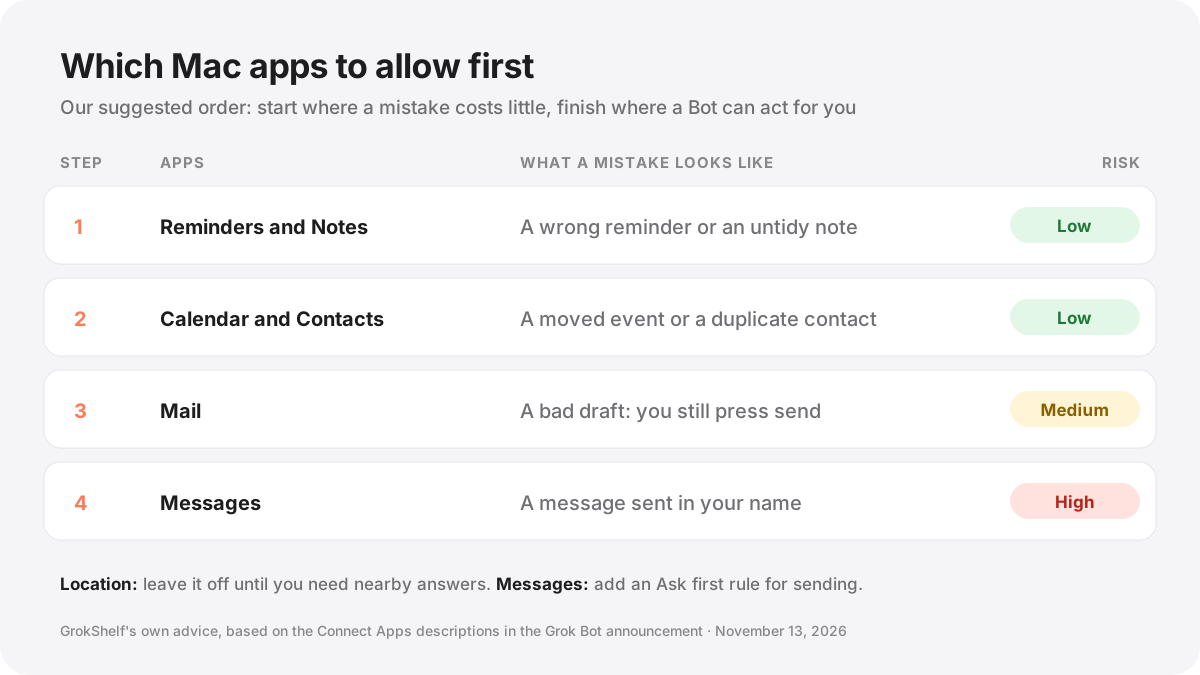
Start with Reminders and Notes. They are useful straight away and low risk: the worst a mistake does is add a wrong reminder or an untidy note. Ask the Bot to turn a meeting summary into reminders, or to keep a running note for a project.
Add Calendar and Contacts next. Together they let a Bot answer "when am I free on Thursday and what is Sam's number" without you opening two apps. Check the first few calendar changes it makes.
Add Mail for search and drafts. Ask for a draft reply and send it yourself. This is where a Bot saves the most time with the least risk, because the screen does not show Mail sending for you.
Allow Messages last, with an Ask first rule for sending. Reading Messages is helpful for catching up. Sending should always be a card you approve.
Leave Location off unless you need it. It only matters for nearby questions, and it is easy to allow later.
If you want a Bot with a narrow, clear job to try this with, start from one of the focused picks in Top Grok Bots by job, and read Using a Grok Bot safely for how to keep each Bot's access small.
How Mac compares with the phone apps
This is not the first time Grok Bot has reached Apple apps. On October 22, the Grok Bot account rolled out phone app access on iPhone and Android. xAI's mobile docs list Calendar, Contacts, Location, alarms and timers on both, plus Reminders and Apple Home on iPhone only. On phones, Contacts is read only and Location returns a position, not a place name. Phone access only works in your own chat with a Bot you own, not in group chats, in Slack, or with someone else's Team Bot. When that rollout was announced, the account said: "iMessage is not part of this update."
The Mac adds what the phone could not: Mail, Notes and Messages, plus the ability to add contacts. The Mac post does not say the iPhone limit on iMessage has changed, so if you want a Bot to read or send iMessages, it has to go through a Mac.
Who can use it
The Grok Bot desktop app runs on macOS on both Apple silicon and Intel Macs, according to xAI's FAQ. Grok Bot itself comes with Premium, Super and Ultra on The X Subscription, and with every paid individual plan on legacy Cursor plans; Plus and Free do not include it. The announcement did not name a minimum macOS version or say whether the Apple connections need a particular plan, so if you do not see Connect Apps, update the Mac app first.
The move also puts Grok Bot level with rivals on the Mac: 9to5Mac noted that ChatGPT added a Messages integration on Mac earlier this year. iGeeksBlog points out that Apple has said it plans stricter steps before apps can get Full Disk Access, without naming a macOS version yet, so the way Mac permissions work could change.
Questions people are asking
Can Grok Bot send iMessages now? On a Mac, yes: the Messages connection says "Read and send messages." On iPhone, nothing has changed since the account said iMessage was not part of the phone update.
Can it send email from my Apple Mail account? The Connect Apps screen says "Search and draft emails." It does not say send, so plan on reviewing and sending drafts yourself.
Does my Mac need to be on? Almost certainly. The Bot works through the Grok Bot app on your Mac, and xAI's docs say phone access only works while the app is open. Expect the same for Mac.
Can a Team Bot use my Mac apps? xAI has not said. On phones, only a Bot you own can use your apps, and only in your own chat. Assume the Mac works the same way until xAI says otherwise.
How do I turn it off? Turn off each app in Grok Bot's Connect Apps settings, and you can also remove access in macOS under System Settings, then Privacy and Security, for the app in question. Set Execution on this computer to Never allow if you do not want a Bot running anything on your Mac.
Sources
- Grok Bot on X: Mac can now use Messages, Mail, Notes, Reminders, Calendar, Location and Contacts (November 12, 2026) ↗
- Evan Bacon on X: remote control your Mac from any Grok Bot client ↗
- Grok Bot docs: Computer and apps ↗
- Grok Bot docs: Approvals, security and privacy ↗
- Grok Bot docs: Mobile ↗
- Grok Bot docs: FAQ ↗
- Grok Bot on X: phone apps rollout (October 22, 2026) ↗
- 9to5Mac: Grok Bot for Mac adds integration with Apple Mail, Messages, Notes, and more ↗
- iPhone in Canada: Grok Bot can now read and send messages on your Mac ↗
- iGeeksBlog: Grok Bot on Mac can now use Apple Mail, Messages, and Notes ↗