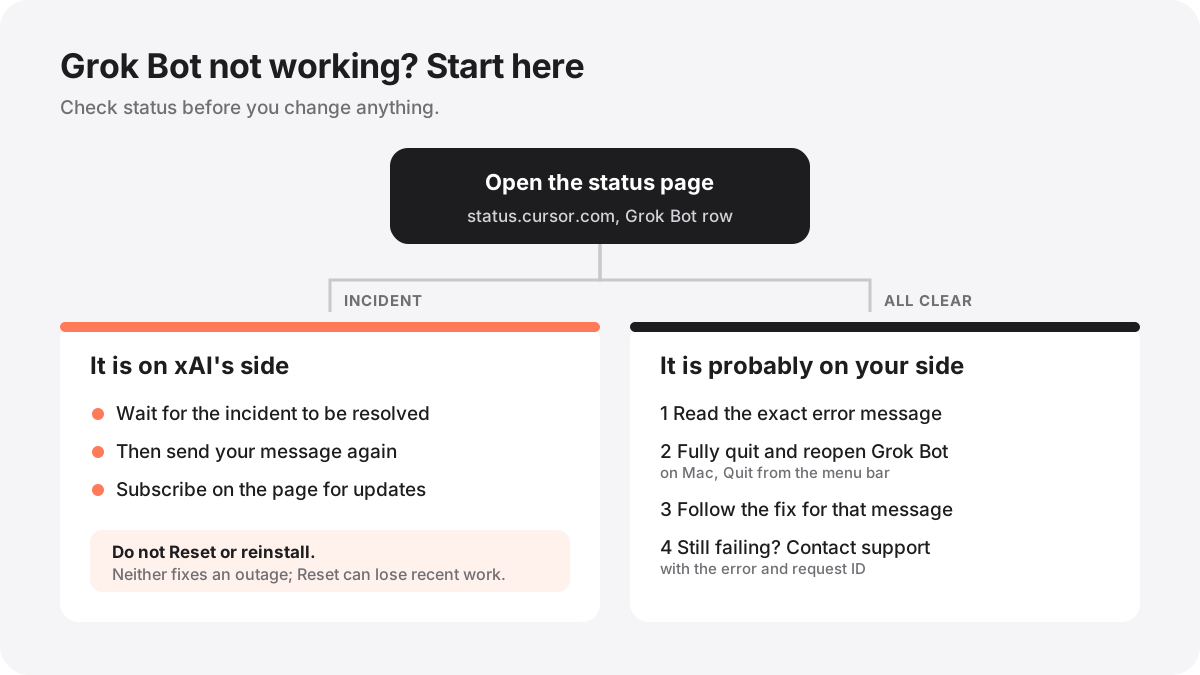
Short answer: check the status page first. xAI's Grok Bot troubleshooting docs say to open status.cursor.com and look at the Grok Bot row; that address now forwards to xAI's status page at status.x.ai. The app itself does not show service status. If there is an incident, wait for it to clear and send your message again. If there is none, the problem is usually on your side, and a full restart of the app fixes most of it. Do not press Reset or reinstall while you are unsure; neither fixes an outage, and Reset can lose very recent work.
Step 1: is it down for everyone?
Open status.cursor.com and find the Grok Bot row. The docs say you can subscribe there to get updates when an incident starts and ends. Grok Bot runs on Cursor's systems, which SpaceX bought in August 2026, so its status lives with Cursor's services. When we checked on November 15, 2026, the old Cursor address redirected to status.x.ai.
If the status page shows a Grok Bot incident, the fix is to wait. Send your message again once it is resolved. The docs are clear that you should not Reset the Bot's computer or reinstall the app during an outage: neither one fixes a service problem, and Reset can lose very recent changes if the computer cannot be reached to save them first.
If the status page shows nothing wrong, keep going. Your Bots keep working in the cloud even when your app is disconnected, so a problem on your screen does not always mean your Bot has stopped.
Step 2: read the error message
Grok Bot's messages are fairly specific, and each one points to a different fix. These are the common ones and what xAI's docs say to do.
| What you see | What it means | What to do |
|---|---|---|
| Bot failed to respond | A turn failed, often briefly | Wait a moment and send the message again. If it keeps failing, fully quit and reopen Grok Bot. |
| Model provider is overloaded | The model behind the Bot is busy | Wait a moment and resend. Check the status page if it lasts. |
| Reconnecting, or Couldn't Reach Grok Bot's Computer | The app cannot talk to the Bot's cloud computer | Wait, then choose Retry. Do not Reset during this. |
| Unreachable, while chat still works | Your network is blocking the computer | Try another network. A VPN or company firewall is the usual cause. |
| You're offline, or Showing saved messages | Your device has no internet | Reconnect. Your Bots keep working in the cloud meanwhile. |
| Setting up your Grok Bot, or Updating Grok Bot's Computer | First setup or an update is running | Keep the app open and wait; it can take several minutes. |
| A message that you hit your usage limit | Your weekly usage is used up | It resets each week, or add credit, turn on extra usage, or move to a bigger plan. |
| Update required | Your app is more than 14 days old and a newer one is out | Choose Update, then Restart to update. |
| Your plan doesn't include Grok Bot usage | Your plan has no Grok Bot | Grok Bot needs Premium or higher on The X Subscription, or another eligible plan. |
Step 3: fully restart the app
The docs say most problems clear with a full restart, and it is the least risky thing to try. On a Mac, closing the window is not enough: choose Quit from the menu bar, then open Grok Bot again. On Windows and Linux, quit the app completely, then reopen it. On a phone, close the app from the app switcher and open it again.
If the app hangs every time it launches, contact support with your platform and Grok Bot version. You can find the version in the account menu under Support, then About, where Copy version info copies it for you.
When the Bot's computer cannot be reached
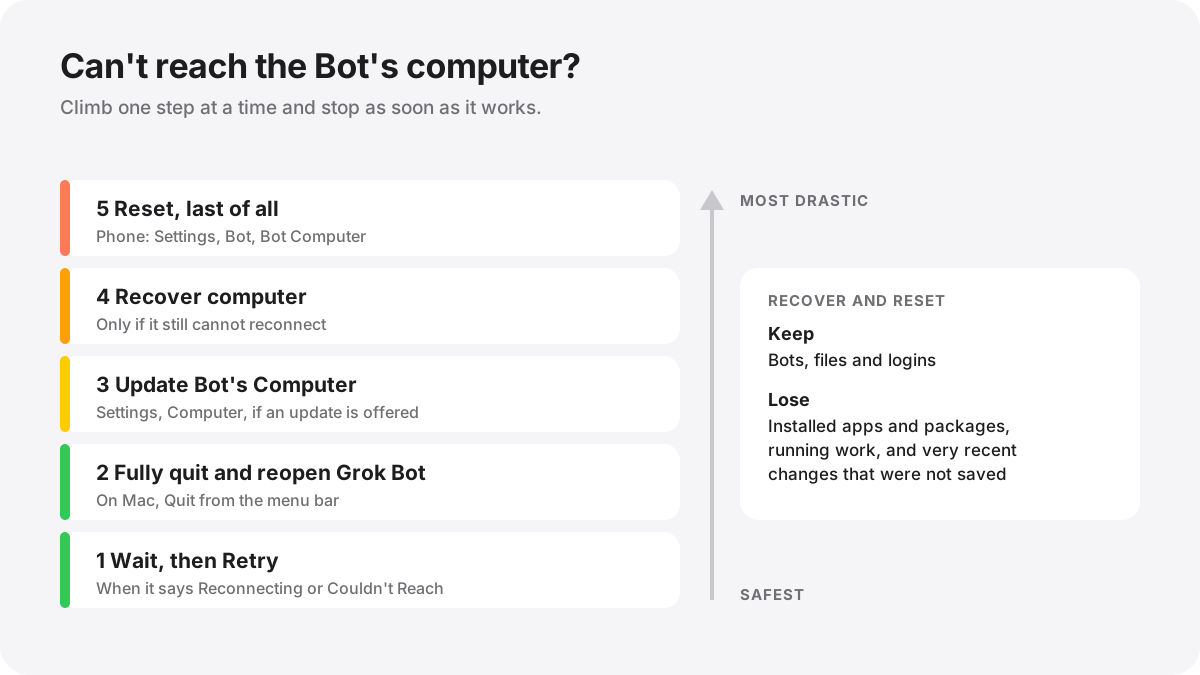
Every Grok Bot account has a cloud computer that its Bots share. When that computer cannot be reached, your Bots, saved conversations, files and logins are not lost; the docs say chats are stored separately from the computer. Recover in this order, and stop as soon as it works:
- If it says Reconnecting or Couldn't Reach Grok Bot's Computer, wait, then choose Retry.
- Fully quit Grok Bot and reopen it.
- If an update is offered, open Settings, then Computer, and choose Update Bot's Computer.
- If it still will not connect, choose Recover computer.
- Use Reset only after all of the above. On a phone it is in Settings, then Bot, then Bot Computer; updating and recovering need the desktop app.
Know what Recover and Reset do before you press them. Both build a new computer from your saved data. Your Bots, files and logins stay, but installed apps and packages are removed, running work is interrupted, and very recent changes can be lost if the computer could not save them. Project folders such as node_modules or a Python virtual environment are not saved, so reinstall them afterwards. Do not start a second update or reset while one is running, and if Recover or Reset fails, retry once and then contact support. If Bots disappeared recently, contact support before using either.
My Bots or chats are missing
They are usually not deleted. Fully quit and reopen the app, then open the same account on another device, such as the phone app; Bots and chats are shared across every device signed in to that account. Check Hidden Bots in the sidebar on desktop, or Show Hidden Bots on the phone, because hiding a Bot only removes it from the list. Finally, make sure you are in the same account and not a different login. Our Grok login guide explains which account Grok Bot uses.
Do not use Recover or Reset to look for missing Bots. If they are missing on every device, contact support with the Bot's name and a screenshot of the sidebar.
A Bot looks stuck
A Bot that seems frozen is often waiting for you. Check its status in the sidebar and the conversation, then open its computer to see what is on screen. Look for a question, an approval card, a login page, a CAPTCHA or a request for a secret. If its approach is wrong, send a short message to redirect it. If the work should end, send a direct message such as Stop now.
Approvals for work you did not start yourself, such as a routine or a message from another Bot, expire after about 30 minutes and then show Expired. Turn on notifications for Bots that run routines so you catch them in time, and ask the Bot to try again after one expires.
Other things that look like an outage
A website times out or will not load for the Bot. The Bot's computer reaches the internet through Cursor's shared network, and some sites drop those connections even when they open fine on your own device. Update, Recover and Reset do not change this. Instead, open Settings, then Computer, then Your computer, and turn on Route traffic through this computer so the Bot uses your desktop's connection while the app is open.
A routine did not run. Open it and check that it is not Paused, that the schedule and time zone are right, that its Bot still exists, that its plugins are still signed in, and that your usage has not been paused. If a routine that is not paused has not run for 24 hours with no error, report a bug with the Bot and routine names.
A run fails with the same error every time. Copy the request ID from the message, try once more, and if a fresh run fails the same way, report it with the error text and request ID.
@bot did not reply on X. Tagging @bot is not available in every region yet. It also stays quiet when a post has a video, also tags @grok, or does not pass moderation. That is not an outage.
A Bot cannot use your phone's apps. Keep Grok Bot open on the phone while it works, and check Settings, then Connect apps.
Sign in never finishes. That has its own fixes, covered step by step in how to sign in to Grok and Grok Bot.
Is Grok down?
Grok, the chat and image app at grok.com, is a separate service from Grok Bot. Check xAI's status page at status.x.ai for it as well. If Grok is up but not working for you, xAI's FAQ says restarting the app, or deleting and reinstalling it, logging out and clearing the cache fixes most login and activation problems. On the web, try Chrome or Edge in a private window to rule out a browser extension.
If image or video creation is the part that seems broken, note that many users lost the Imagine tab in November 2026 and now make images and videos from Image and Video mode in the normal chat. We covered that in Grok Imagine after the layoffs.
How to contact support
In the desktop app, open the account menu and choose Support, then Send Feedback, and keep Include current conversation ID selected if the problem is in the open chat. On a phone, open Settings and tap Send Feedback. For help from a person, email [[email protected]](mailto:[email protected]) from the email on your Grok Bot account.
Support can move faster if you include the email on your account, your Grok Bot version and platform, what you were trying to do and which Bot or routine, the exact error message or a screenshot, the request ID if there is one, and roughly when it happened with your time zone. To copy a request ID, right click the message and choose Copy request ID.
Common questions
Is Grok Bot down right now? Only the status page can tell you. The app does not show service status, and GrokShelf does not monitor it, so check the Grok Bot row there.
Will my Bots keep working if my app is offline? Yes. Bots work in the cloud, so they carry on while your app reconnects.
Does reinstalling fix Grok Bot? Rarely. Your Bots and chats belong to your account, so a reinstall is safe, but it does not fix an outage, a network block or a sign in loop. Restart first.
Why did my Bot stop halfway through a task? Usually it is waiting for an approval or a login, or your weekly usage ran out. Check the conversation and its computer before anything else.
Before adding any of these, read Using a Grok Bot safely.
References
- xAI docs: Grok Bot troubleshooting — status, errors and recovery, checked November 15, 2026
- Status page (Grok Bot row) — redirects to status.x.ai
- xAI docs: Grok Help & FAQ — app troubleshooting for Grok
- xAI docs: Tag @bot on X
- xAI docs: Grok Bot for Mobile