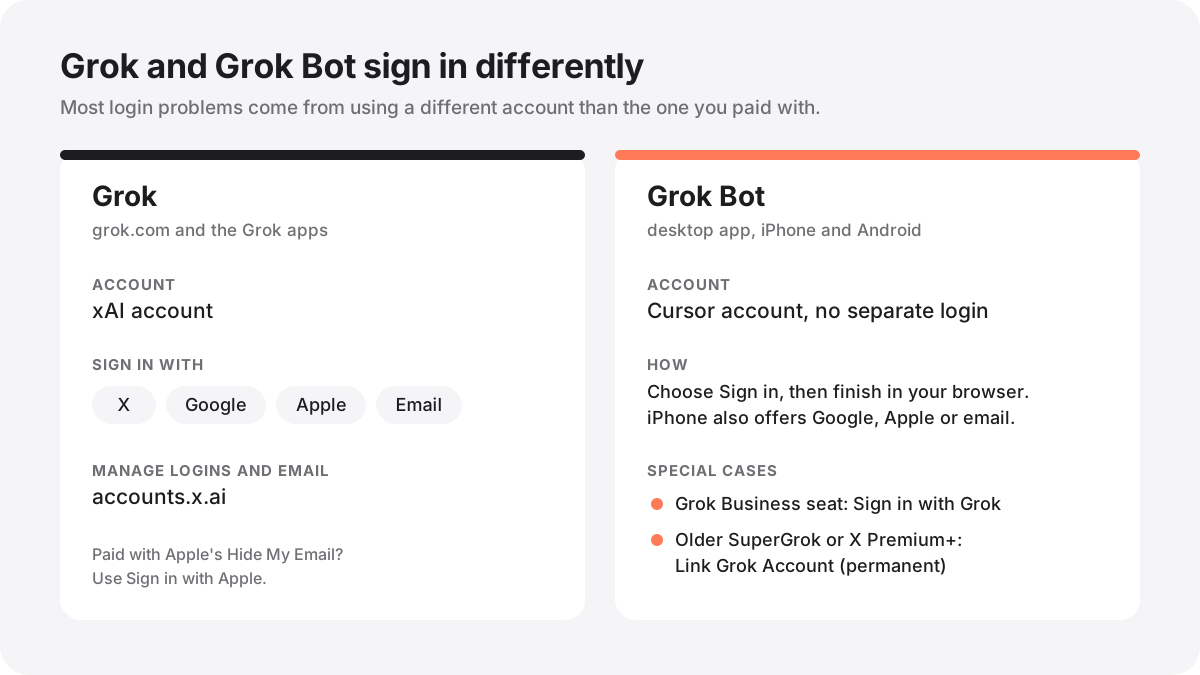
Short answer: Grok and Grok Bot use different sign in systems. For Grok, the chat and image app, sign in at grok.com or in the Grok app with your X, Google or Apple login or an email address, and manage those logins at accounts.x.ai. Grok Bot has no separate login: it uses your Cursor account, and the sign in finishes in your browser. Most login problems come from using a different account than the one you paid with. Steps below come from xAI's help docs, checked November 15, 2026.
Which account do you sign in with?
It helps to know why there are two systems. Grok was built by xAI, which is now part of SpaceX and calls itself SpaceXSI. Grok Bot, the agent that works on its own computer for you, runs on Cursor's systems; SpaceX bought Cursor in August 2026. So Grok accounts live at accounts.x.ai, and Grok Bot accounts are Cursor accounts.
If you moved to The X Subscription, the plan that bundles Grok, Grok Bot, Cursor and X, your Grok and Cursor accounts were combined into one workspace with one bill when you switched. You still sign in to each app in its own way, so the rest of this guide covers each one.
How to log in to Grok
- Go to grok.com, or open the Grok app on iPhone or Android.
- Choose Sign in and pick the same method you used when you signed up: X, Google, Apple or email.
- If you pay for Grok, check that your plan shows. If it does not, you are probably in a different account; sign out and try your other login.
Connect your X account. If you want X to work as a login, or you get Grok benefits through X Premium, open Settings and then Account on grok.com and choose Connect your X Account. xAI's FAQ says this sends you to X to approve it, and afterwards SpaceXSI can read your X subscription status and give you the matching benefits.
Manage your logins and email. You can add sign in methods or change your email at accounts.x.ai. If you lost access to an old address, such as a university email after you graduate, sign in with a new email, Google or X account and link it there. If you subscribed through Apple, your login is tied to your Apple ID, so change that email through Apple.
Grok login problems and fixes
My subscription is not showing. A subscription belongs to the account that bought it. The FAQ calls this a common mix up rather than a double charge: if you subscribed while signed in with Apple and now sign in with Google, Grok sees a different account. Sign in with the same method everywhere.
I used Apple's Hide My Email. If your subscription was created with Apple's private relay address, you have to use Sign in with Apple for it to be recognised. Typing the relay address into an email or Google login will not find it.
The app keeps asking me to upgrade even though I pay. Restart the app, or delete and reinstall it, sign out and back in, and clear the cache. Make sure the app is up to date, and check that the subscription is active both in the app and in your app store's Subscriptions list.
Nothing works in the browser. Support's first suggestion for login and activation problems is to restart, log out and clear the cache. On the web, try Chrome or Edge in a private window to rule out an extension or a bad cookie.
How to log in to Grok Bot on desktop
Grok Bot has its own app for Mac, Windows and Linux. Download it from x.ai/bot, then:
- Open Grok Bot and choose Sign in on the welcome screen.
- Your browser opens. Finish signing in there with your Cursor account, or with your company's single sign on if your work uses it.
- Keep Grok Bot open while the browser does its part. If the app does not come back to the front by itself, switch back to it.
If your access comes from a Grok Business seat, choose Sign in with Grok in the browser and use the Grok account that holds the seat.
If your access comes from an older SuperGrok or X Premium+ plan on a legacy Cursor account, you link it rather than sign in with it. Choose Link Grok Account on the Get Started with Grok Bot page at cursor.com/bot/onboarding. If you already have access, look under Manage Plan in Settings, then Usage & Billing for Get Access with Grok; it only appears when linking would raise your usage. A link is permanent, so check which account you are in first. The Grok Bot FAQ says that if you link to the wrong Cursor account, only support can fix it.
Grok Bot needs cloud storage, so an account on the older Privacy Mode (Legacy) setting is asked to switch to Privacy Mode before it can sign in. On a team, an admin changes that setting.
How to log in to Grok Bot on iPhone and Android
Grok Bot for phones needs iOS 18 or Android 9 or later. According to the mobile docs:
- Open Grok Bot.
- On iPhone, choose Continue with Google, Sign in with Apple or Continue with email. If you are already signed in to the X app or the Grok app on the same phone, Grok Bot may offer Continue as that account; choose Other options to see the rest. On Android, choose Log In or Sign Up and finish in the browser.
- Use the same account you use on desktop. If your account asks for a code from an authenticator app, enter it on the Enter your verification code screen, or choose Use the browser instead.
- If your access comes from SuperGrok or X Premium+, choose Link Grok Account when asked, sign in to Grok in the browser, then come back and choose Finished Linking? Refresh My Status.
Signing in on the phone with the same account brings your Bots, chats and plan with you. Do not buy a second subscription in the App Store or Google Play if your plan already includes Grok Bot; the docs say your phone and desktop share the same usage.
Fix a Grok Bot sign in loop
If sign in never finishes, or you keep landing back on the login screen, xAI's troubleshooting page suggests these steps in order:
- Update the desktop app to the latest version, then sign out and sign back in.
- Clear your browser's cache and cookies for cursor.com and x.ai, then sign in again in a private or incognito window.
- On desktop, also try signing in at x.ai/bot with the same Cursor account. If the phone app loops, sign in on desktop first.
- If the error started recently, wait 30 to 60 minutes and try again. Some errors clear on their own as your session refreshes.
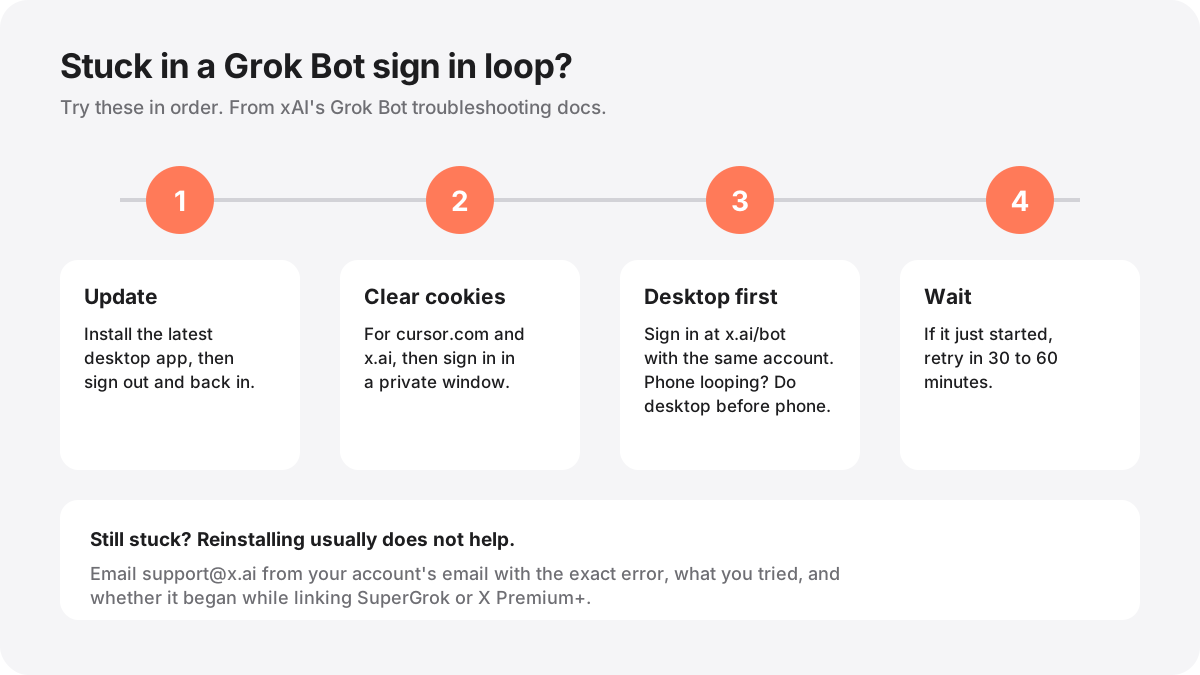
Reinstalling the app usually does not fix a loop. Some failures, including looped sign in flows and blocks caused by a failed phone verification, can only be fixed by support. Email [[email protected]](mailto:[email protected]) from the email on your account with the exact error text, what you already tried, and whether it started while you were linking SuperGrok or X Premium+. For a phone verification block, include a screenshot of the blocked screen.
If lots of people cannot sign in at the same moment, the problem may be on xAI's side. Check the status page first; Is Grok Bot down? explains where to look and what each error means.
When a Bot needs to log in to a website
A different kind of login problem: your Bot is working on its own computer and a website asks it to sign in. The Grok Bot FAQ says Bots sign in with logins from Vault, a connected password manager or a Secure Form, without seeing the values. Steps only a person can do, such as single sign on, passkeys and CAPTCHAs, use a computer takeover, where you control the Bot's screen and do it yourself. Never paste a password or a verification code into a normal chat.
If a site keeps asking, the troubleshooting docs say to take over the computer, sign in, complete any two factor check or CAPTCHA, wait for the signed in page to load, and then tell the Bot to continue. Fingerprint, Face ID, Windows Hello and passkeys saved on your own laptop or phone do not work on the Bot's computer. For a work app behind Okta or single sign on, use a method your company allows there, such as a password with a code or a push approval on your phone. On Mac and Windows you can also turn on hardware security keys in Settings, then General.
Some sites end sessions often or ask for a check on every sensitive action. That cannot always be avoided, and it is a reason to give a Bot only the accounts it needs. Using Grok Bots safely covers the rest.
Change your email, recover or delete an account
Grok accounts: change your email at accounts.x.ai, as above. Grok Bot accounts: the email on a Cursor account cannot be changed. The Grok Bot FAQ says to make a new account if you need a different email.
If your account was hacked and someone changed your email, contact support straight away with your user ID and anything that proves the account is yours. The Grok FAQ says support can cancel the subscription on a compromised account, or delete the account so you can sign up again if your identity cannot be checked by email.
To delete a Grok account, follow the steps at accounts.x.ai. If you use the same account for the xAI API, your API access is removed too. Cancel any paid plan first; how to cancel your Grok subscription explains where, because App Store and Google Play plans keep billing until you cancel them in the store.
Common questions
Is the Grok Bot login the same as my Grok login? Not by default. Grok uses an xAI account; Grok Bot uses a Cursor account. On The X Subscription they are combined into one workspace, and a Grok Business seat signs in with Sign in with Grok.
Do I need X to use Grok? No. You can sign in with Google, Apple or email. Connecting X adds it as a login and lets Grok see an X subscription you pay for.
Can I log in to Grok Bot without paying? You can sign in, but using Grok Bot needs Premium, Super or Ultra on The X Subscription, a paid legacy Cursor plan, a linked SuperGrok or X Premium+ plan, or a trial. See what Grok Bot costs.
Why does my Bot list look empty after logging in? Check that you are in the same account as before. The troubleshooting docs say Bots and chats are shared across every device signed in to that account, and hidden Bots stay in a Hidden Bots list.
Before adding any of these, read Using a Grok Bot safely.
References
- xAI docs: Grok Help & FAQ — accounts and login, checked November 15, 2026
- xAI docs: Grok Bot get started — desktop sign in and linking
- xAI docs: Grok Bot for Mobile — iPhone and Android sign in
- xAI docs: Grok Bot troubleshooting — sign in loops and website logins
- xAI docs: Grok Bot FAQ — linked plans and account email
- xAI docs: Grok Bot on The X Subscription