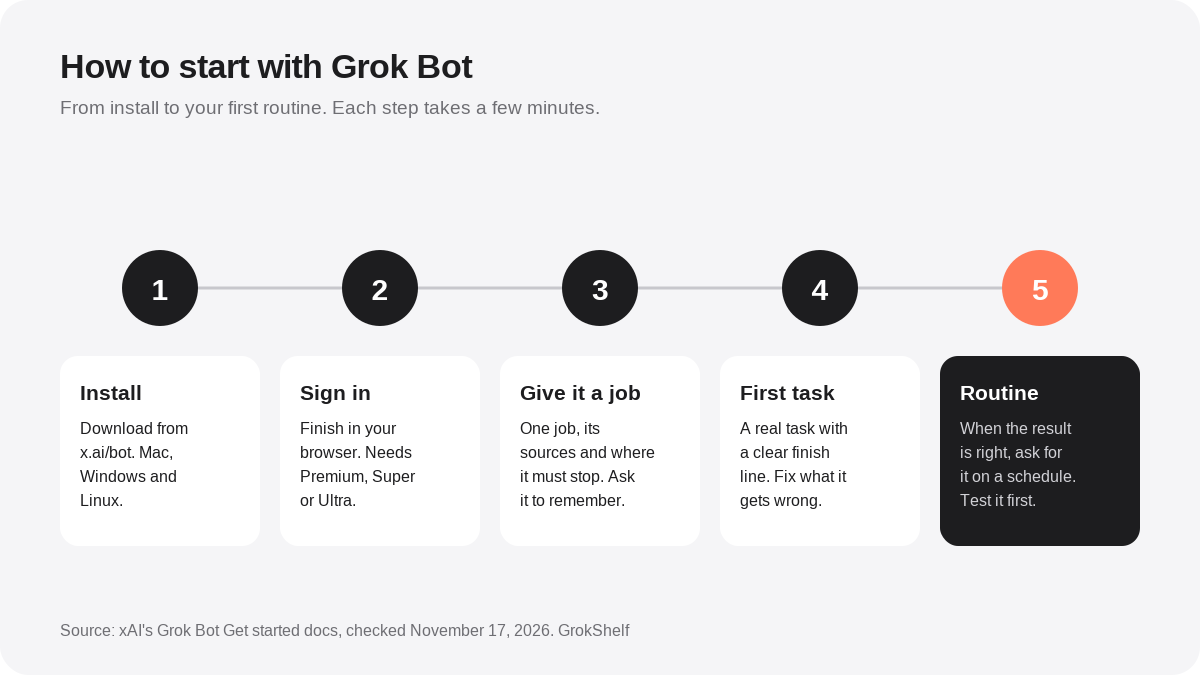
Short answer: install the desktop app from x.ai/bot, sign in through your browser, and the app creates your first Bot and opens a chat with it. Give that Bot one job, tell it which sources to use and where it must stop, then hand it a real task with a clear finish line. When the result is right, ask it to repeat the task on a schedule and it becomes a routine that runs in the cloud while your laptop is closed. Below is each step in detail, with the settings that matter and the mistakes that waste usage. Everything comes from xAI's Grok Bot docs, checked November 17, 2026.
Before you start
Grok Bot is included with Premium ($30 a month), Super and Ultra on The X Subscription. Plus and Free do not include it. Older Cursor plans, SuperGrok and X Premium+ subscriptions can also give access by linking your Grok account. Prices, trials and downloads are covered in how much Grok Bot costs.
The desktop app runs on Mac (Apple silicon and Intel), Windows and Linux. The phone apps need iOS 18 or later, or Android 9 or later, and reach the same Bots and conversations as desktop. If you are still unsure what a Bot actually is, read what is a Grok Bot first. This guide assumes you want to start using one.
Step 1: install and sign in
If the sign in never finishes in the browser, our Grok login guide covers the usual causes, such as signing in with a different account from the one you pay with.
- Download Grok Bot from x.ai/bot and open it. The app updates itself, except Linux .deb and .rpm installs, which update through your package manager.
- Choose Sign in on the welcome screen and finish in your browser. Grok Bot uses your Cursor account, so there is no separate login. If your company uses single sign on, sign in the usual way.
- If your access comes from a SuperGrok or X Premium+ plan, choose Link Grok Account on the Get Started page, or on the access screen in the phone app.
- If the app asks you to change Privacy Mode, accept. Grok Bot needs cloud data storage, so the old Legacy Privacy Mode is not supported.
Step 2: give your first Bot one job
After a short intro, the app creates your first Bot, called Grok Bot, and opens a chat with it. xAI's advice is simple: give each Bot one job in its first message and ask it to remember how you want the work done. A Bot with one job builds more useful context than a catch all helper.
A good first message covers three things: the job, the sources it should use, and where it must stop and ask you. For example: "Your job is my weekly competitor check. Use these three websites and our pricing doc. Never email anyone or post anything without my approval. Remember this."
To add more Bots later, choose New Bot (the + button) at the top of the sidebar, or press Cmd+N on a Mac or Ctrl+N on Windows. Name it, pick a picture and choose Create. You can also start from a Bot someone else built: the GrokShelf directory lists verified public Bots by job, and adding a shared Bot copies its setup into your account without sharing anyone's logins.
Step 3: write a task it can finish
Ask the way you would ask a coworker. Say what you want back, which sources to use, any limits, and when to check with you. Vague requests like "help with my inbox" waste usage because the Bot has to guess when it is done.
These starter prompts come from xAI's own guide, and each one has a clear result and a clear limit:
| Job | Starter prompt |
|---|---|
| Morning briefing | Sum up what changed since yesterday in my inbox, calendar, Slack, and docs, and flag what needs me. Draft it as a post for #team; don't send it. |
| Inbox manager | Sort my unread email into urgent, needs a reply, and FYI. Draft replies to the urgent ones and don't send anything. |
| Competitor check | Check these three competitors for anything they launched or repriced this week. Send me a short list with links and what it means for our messaging. |
| Travel | Find flights to Austin for Thursday, back Sunday, with no red eyes, and a hotel near downtown. Send me the two best options; don't book anything. |
Step 4: connect your apps
Apps give a Bot a reliable way to work with services such as Gmail, Notion and Slack, and xAI says they work better than clicking through a website. Open Connect apps from the sidebar (on the phone, tap your avatar first), find the app, add it, then finish the Authorize step in your browser. Check that it shows under Installed. In a chat, type @ to attach an app to a task.
Two details trip people up. Added only means installed, not signed in, so if a Bot says an app is missing, open it and choose Authenticate. And connected apps are account wide: every Bot you run can use them, so connect only what your Bots need.
For sites without an app, the Bot signs in on its own cloud computer using a login saved in Vault, a connected password manager, or a Secure Form where you type the password yourself. The Bot never sees the password. For passkeys or single sign on, it hands you the computer: choose Open computer, then Take control, finish the step and tell it to continue. All your Bots share that one computer, including its files and signed in sessions, so do not leave anything on it that one of your Bots should not use.
Step 5: answer approval cards
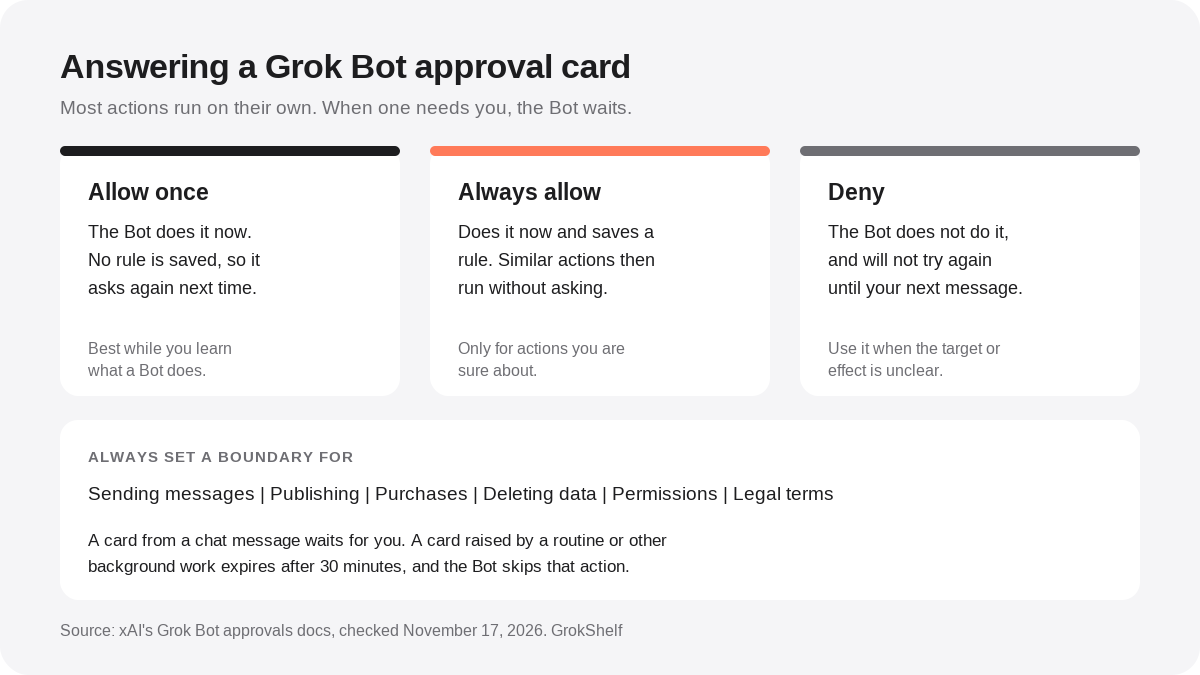
Grok Bot checks each action before it runs. Most go ahead on their own. When one needs you, the Bot shows an approval card with the exact action and waits. Read the target and the values before you answer. If you cannot tell what an action will do, ask the Bot to explain it in plain words or make a draft first.
- Allow once: the Bot does it now, and no rule is saved.
- Always allow: the Bot does it now and saves a rule, so similar actions run without asking in future.
- Deny: the Bot does not do it, and will not try again until you send another message.
Why some approvals expire
A card raised by a message you sent waits until you answer. A card raised by a routine or other background work expires after 30 minutes, and the Bot skips that action. Sending a new message in the chat also closes any open card. If a task stalled, check for an Expired card and ask the Bot to try again.
Email works the same way. Mail you ask for in chat goes out once it passes review. Mail from a routine waits as a draft until you press Send. xAI also recommends setting a boundary up front for sending messages, publishing, purchases, deleting data, changing permissions, production changes and accepting legal terms. Our guide to using Grok Bots safely goes further.
Step 6: turn it into a routine
Once a task comes back right, ask the Bot that did it to repeat it. A clear routine request names the schedule and time zone, the input, the expected result, the approval boundary, and what to do if a source is missing. xAI's example: "Every weekday at 8:00 AM, run the Daily customer risk skill against the current account list. Post a linked watch list in this conversation. Do not contact customers. If the source data is unavailable, report the failure instead of using old data."
If the routine shows a Test button, use it before you rely on it, and check that it used current inputs, matched your format and stopped at the right approval point. A test does real work, so use safe inputs. Routines are listed on the Details tab when you click the Bot's name, where you can pause, edit, test or delete them. Routines can also start from events, such as a Slack message or a webhook.
If you repeat the same process with several Bots, ask one to save it as a skill, for example "Save the process we just used as a skill called Weekly account health." Skills are shared across all your Bots.
Routines and your weekly usage
Every routine run spends usage from your weekly pool. xAI warns that an hourly schedule, a short interval or a Slack trigger on a busy channel can use a week of usage in a day. Start with daily or weekly schedules, and widen them before you think about a bigger plan.
There are hard limits too. A Bot can own up to 50 routines, schedules must be at least five minutes apart, and all your routines together can run up to 300 times an hour. If you are away for a long time, Grok Bot may ask whether to keep routines running and pause them if you do not reply, so check for paused routines when you come back. The background on recent limit changes is in Grok Bot usage limits.
Can you change the model Grok Bot uses?
No. This is one of the most searched questions, and xAI's FAQ is clear: there is no model picker. Grok Bot chooses the model for each task, which can be a Grok model or a third party model such as Claude, and the choice can differ from one request to the next. It does not show which model answered, and the routing does not change what you pay per token. How fast you use your allowance depends on the kind of work and how much effort it takes. The full story is in does Grok Bot use Claude?.
Use Grok Bot on your phone and in Slack
Install Grok Bot from the App Store or Google Play and sign in with the same account. Your plan carries over without a second purchase. From the phone you can message Bots, approve actions, watch or take over the computer, and pause or resume routines. On the phone, open a Bot's profile and tap Add routine to start a new routine.
Since Grok Bot 1.0, Bots can also join team tools such as Slack, Microsoft Teams and meetings. We covered what changed in Grok Bot 1.0: Team Bots, Slack, Teams, meetings.
Habits that make Bots more useful
- Lead with the result you need, not every click you would make.
- Link the source of truth instead of describing it.
- Say what the Bot may change and what needs your approval.
- Ask for evidence: links, screenshots or a short action log.
- Turn lasting preferences into rules by saying "from now on" and asking it to remember.
- Start a new Bot when a conversation turns into a different long term job.
- Send "Stop now" when work should end at once. It stops the Bot but does not undo what is already done.
Common questions
Do I need to keep my computer on? No. Bots and routines run on a cloud computer, so they keep working while your laptop is closed or the app is offline.
Can I rename a Bot or change what it does? Yes. Click its name at the top of the chat to rename it. To change its job or rules, tell it in chat and ask it to remember. Personal Bots no longer have a settings page for this.
What is a primary Bot? Your main point of contact. It checks in with you on its own and coordinates your other Bots. Right click it in the sidebar to replace it with another.
Grok Bot stopped replying. What now? Check the status page first, then restart the app. Our Is Grok Bot down? guide covers every error.
Before adding any of these, read Using a Grok Bot safely.
References
- xAI docs: Grok Bot Get started — install, sign in, first task and starter prompts, checked November 17, 2026
- xAI docs: Create and manage Bots
- xAI docs: Use the computer and apps — connect apps, shared computer, sign in
- xAI docs: Approvals, security and privacy
- xAI docs: Skills and routines — routines, testing, limits and usage
- xAI docs: Grok Bot FAQ — model choice
- xAI docs: Grok Bot for Mobile