Grok Bot 1.2.3 came out on November 18 and rolls in 1.2.1 and 1.2.2. You can now set each connector tool to Always allow, Auto-review, Needs approval or Blocked, routines warn you when they lose a sign in, and team admins get tighter control over GitHub and MCP. Here's what changed and what to do about it.
Two days after Grok Bot 1.2.0, xAI shipped another update. Version 1.2.3 went out on Wednesday, November 18, and its changelog entry also covers 1.2.1 and 1.2.2, so if your app skipped straight to 1.2.3 you got all three at once.
It isn't a flashy release. There's no new model and nothing you'll notice the moment you open the app. Most of it is about control: which tools your Bot is allowed to use without asking, what happens when a routine quietly loses access to an account, and how much a team admin can lock down. If you've ever come back to find a scheduled Bot did nothing all week because a login expired, this one's for you.
We've gone through the whole changelog. Below is what matters, in plain language, along with what we'd change in your settings today.
Where this comes from
Everything here is from xAI's official Grok Bot changelog at x.ai/changelog/bot, in the entry titled "Tool permissions and routine reconnect cards". Unlike 1.2.0, where the first feature list came from an outside account digging through test builds, this one is xAI's own description of what shipped.
Package mirrors confirm the timing. The Chocolatey package for Windows and the Nix package both moved to 1.2.3 on November 18. So did Better Grok Bot, an unofficial add on that patches the app: its automatic check flagged that 1.2.3 broke dozens of its patches, from voice call controls to sidebar folders. That's usually a sign the app's code moved around under the hood, even where the changelog doesn't say so.
A few items in the changelog are marked as needing an earlier minimum version, such as Grok Bot 0.70.2, 0.79.2 or 1.1.0. If your app says 1.2.3, you're past all of them and have every feature listed here, though xAI may still switch some on gradually.
The big one: a permission setting for every tool
Until now, you mostly made decisions about a connector as a whole. Connect Gmail, and the Bot could do whatever the connector offered, with approval cards and rules to catch the risky parts. In 1.2.3, connector pages let you set each tool to one of four levels:
Always allow. The Bot uses the tool without asking. Good for read only things like searching your inbox or looking up a calendar.
Auto-review. Before the Bot uses the tool, Auto Review, the model xAI uses to check actions, looks at it first and decides whether you need to see it. This is the middle ground for things that are usually fine.
Needs approval. You get an approval card every single time. This is where sending, paying, posting and deleting belong.
Blocked. The Bot can't use that tool at all, even if you ask it to.
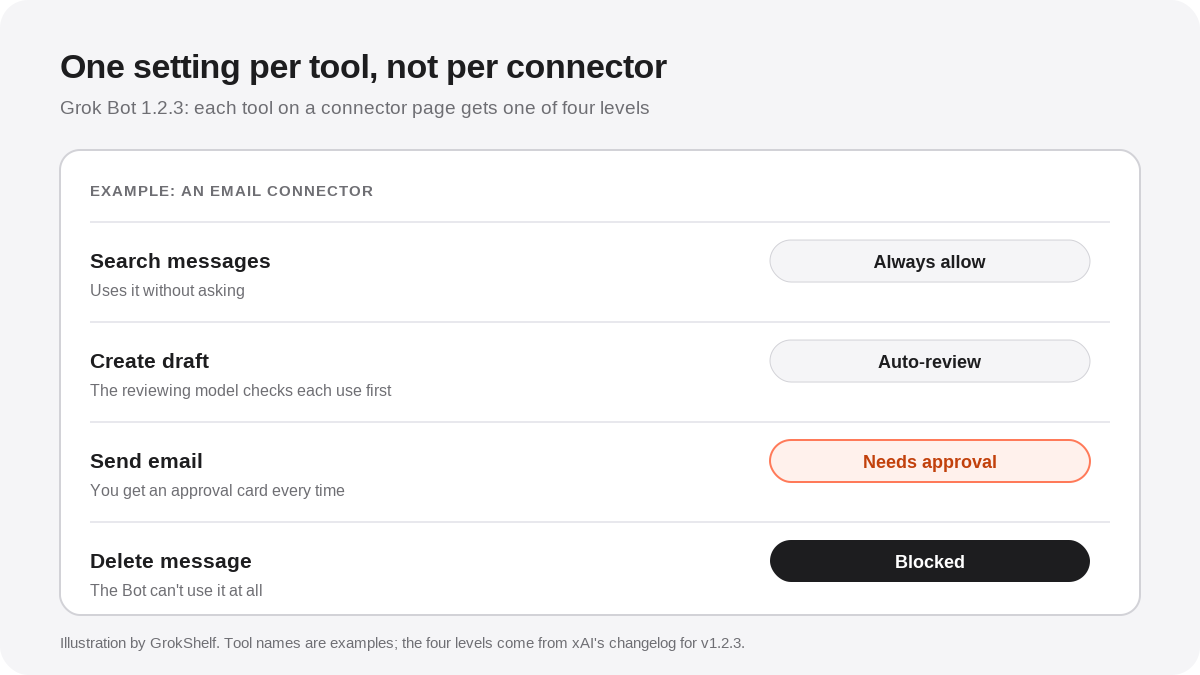
Why does this matter? Because most connectors mix harmless tools with dangerous ones. An email connector can search, draft, send and delete. Before, letting your Bot read your inbox freely and never letting it delete anything meant juggling rules and hoping the right card showed up. Now it's four dropdowns.
Our suggestion: open the connector pages for your most important accounts (email, calendar, payments, GitHub, anything that can post publicly) and spend five minutes on them. Leave reading on Always allow. Put drafting and editing on Auto-review. Put anything that sends, pays, publishes or deletes on Needs approval, and block what you'll never want the Bot doing. Our guide to using Grok Bots safely goes through which actions tend to cause trouble, and how to use Grok Bot explains what the approval cards look like.
This also fits a week where people have been asking how much Bots do on their own. Security firm NewCore reported Bots reading connected apps in the background, which we covered in Grok Bot and your data. Tool level permissions don't stop a Bot from reading things you've allowed, but they make it much easier to say exactly what it may do with them.
Routines that tell you when they're stuck
Routines are the scheduled jobs: a morning summary, a weekly report, a daily check on something. Their weak spot has always been sign ins. A Google or Slack login expires, and the routine just stops doing anything useful, often without you noticing for days.
Version 1.2.3 changes that in three ways. First, a routine that loses a connector sign in now skips its scheduled runs until you sign back in, instead of carrying on without the account it needs. Second, the reconnect card doesn't just sit in the app waiting for you to open it. It also arrives as a notification and as a direct message in Slack or Microsoft Teams, so you see it where you actually are. Third, if one of the Bot's helpers (the smaller agents it hands work to) loses a connector, you get a reconnect card in your chat for that too.
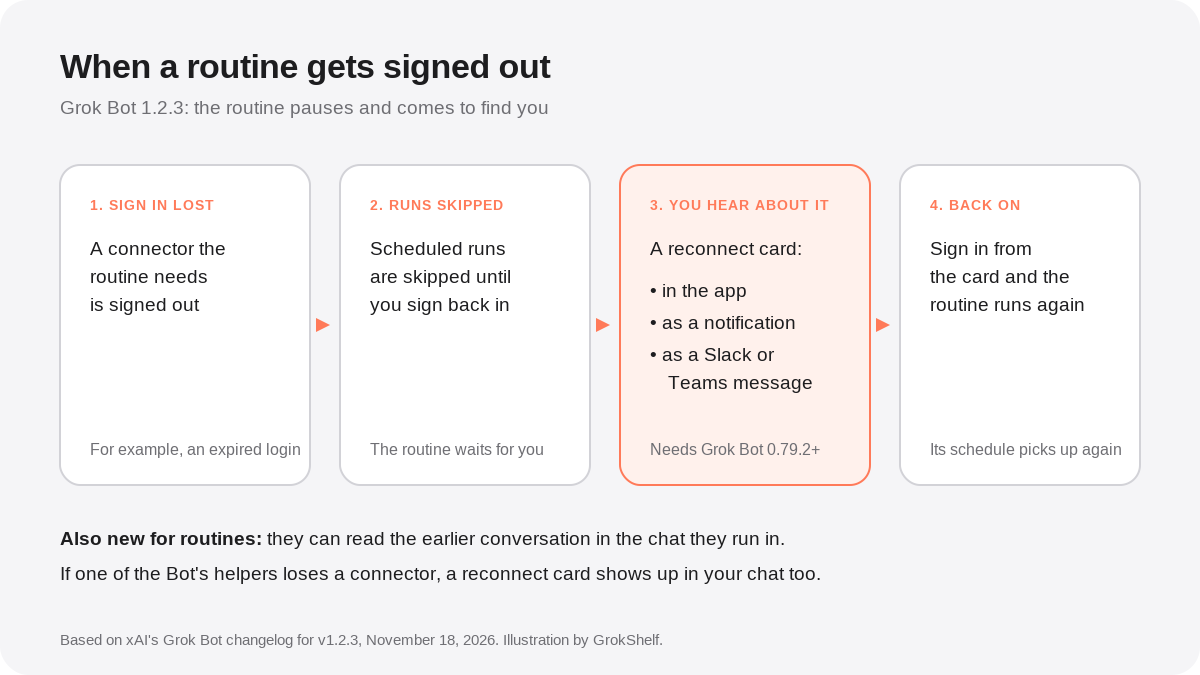
There's one more routine change that's easy to miss: routines can now read the earlier conversation in the chat they run in. So if you set up a weekly routine inside a chat where you'd already explained what you care about, it can use that context rather than starting from scratch every time. If you've been pasting the same instructions into routine prompts, you may not need to anymore.
Connectors first, browser second
A smaller change, but one you'll feel. When a site has a connector, the Bot now uses the connector, or shows you its connect card, before it opens a browser. Browser automation is slower and breaks more easily than a proper connector, so this should make everyday tasks faster and less fiddly. In the same spirit, asking for an X post when X isn't connected now shows the X connect card instead of trying some other way.
When a connector you already set up turns up without its tools, which does happen, the Bot now reloads them and carries on in the same reply instead of failing.
Memory, MCP Apps and other new bits
Better organized memory. The Bot now keeps separate memories for people and organizations, your profile, your standing instructions and your projects. In practice, that should mean fewer cases of it mixing up a client with a colleague or forgetting a rule you gave it last week, since rules now have their own place.
MCP Apps. Clicking a message button inside an MCP App now puts its text in the chat box so you can check it before sending. And each turn keeps its own MCP App card, so a new card no longer replaces the one above it.
Buying credits. If you've saved a card and haven't set a top up rule, the Buy credits screen now opens with automatic top up turned on. That's convenient, but read it before you confirm if you'd rather top up by hand. Our post on Grok Bot usage limits explains how credits and limits fit together.
Flights. When booking flights, the Bot follows each airline's own booking steps. If it can't confirm the final purchase, it sends you the link instead of clicking again. That's a sensible safety catch, given what a double booking costs.
Sign up age. Signing up for Grok Bot now requires you to be 18 or older.
For teams: tighter control over GitHub and MCP
If you run Grok Bot for a team, a lot of this release is aimed at you. We covered how team Bots work in Grok Bot 1.0. Here's what changes now.
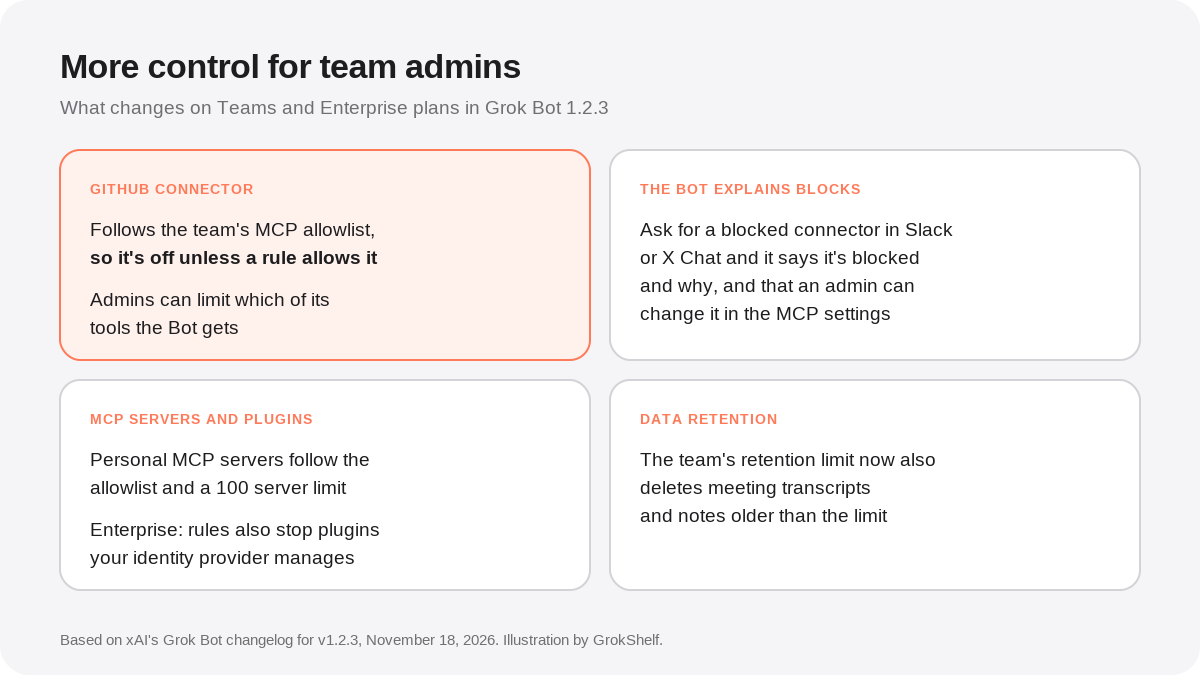
The built-in GitHub connector now follows your team's MCP allowlist, which means it's off unless a rule allows it. If your team relied on GitHub and you hadn't added an allowlist rule for it, check this first. It's the change most likely to make something stop working after the update. Admins can also limit which GitHub tools the connector offers, and the Bot tells people when a tool was limited by an admin.
That explaining is a theme. In Slack and X Chat, asking for a connector your admin blocked now gets a reply saying it's blocked and why. When a team rule blocks one of the Bot's tools, it says that a team admin can change it in the team's MCP settings. It's a small thing, but it saves admins from a lot of "why isn't the Bot working?" messages.
Personal MCP servers that people save in the app now follow the team's allowlist and a limit of 100 servers. On Enterprise plans, admin MCP rules also stop plugins managed by your identity provider, and the connector list marks them as blocked by the team admin.
Finally, data retention: if your team has a retention limit, it now also deletes meeting transcripts and notes older than that limit. If you've been relying on old meeting notes from your Bot, export what you need before they age out.
The fixes
The fixed list is long, and a few are worth knowing about because you may have run into them:
The usage limit tray now disappears after you add credits, and after a plan change the usage warning clears once the new plan takes effect. Pressing Send twice on a draft card no longer leaves it stuck on "Sending". Photos and PDFs you send from your phone now actually reach your Bot's computer, so it can open them. Macs show their own computer name on permission cards instead of a network host name, which makes it easier to tell machines apart.
Also fixed: product searches retry once when the search service hiccups, published Pages no longer jump or lose their place when printed, and the Bot stops saying a call transfer failed while it's still ringing. On a Bot's own Slack app, a former owner is no longer treated as the owner, and if a Bot's owner has no seat on the Bot's team, the Bot says so once instead of retrying over and over.
What we'd do after updating
1. Check your version. Find the version number in the app. If it says 1.2.3 or later, you have everything above.
2. Set tool permissions on your riskiest connectors. Email, payments, GitHub and anything that can post publicly. Ten minutes, tops.
3. Test one routine. Open your most important routine and check its connectors are signed in. If a reconnect card has been waiting for you, now you'll know.
4. Team admins: check GitHub. If your team uses it, make sure an allowlist rule covers it, then decide which of its tools the Bot really needs.
5. Look at automatic top up. If you buy credits, make sure automatic top up is set the way you want it.
If you're looking for Bots that make good use of these controls, PR Reviewer is a natural fit for the new GitHub tool limits, and Release Scout shows how a routine can keep an eye on things for you. You'll find more in the GrokShelf directory.
Quick answers
What's new in Grok Bot 1.2.3? Per tool permissions on connector pages, routines that pause and send you a reconnect card when they lose a sign in, connectors used before the browser, better organized memory, tighter team controls over GitHub and MCP, and a long list of fixes. It also includes 1.2.1 and 1.2.2.
When did it come out? November 18, 2026, two days after 1.2.0.
Will my GitHub connector stop working? On a team plan, it might. The built-in GitHub connector now follows the team's MCP allowlist, so it's off unless a rule allows it. Ask your admin to add one.
What's the difference between Auto-review and Needs approval? With Auto-review, xAI's reviewing model checks each use and only asks you when it thinks it should. With Needs approval, you're asked every time.
Do I need to do anything to get it? The desktop app updates itself. If yours is still on an older version, quitting and reopening it usually picks up the update.
We'll keep following each release. For earlier versions and everything else Grok, see Grok news and the Grok timeline.